Every Short used to get the same captions: one word at a time, white text, gone the moment it was spoken. Starting today you get five subtitle styles that show a few words at once and highlight the word being said. And because we keep a copy of every clip without subtitles, you can change the style after your clips are made.
What was wrong with the old captions
Each word appeared on its own and disappeared as soon as it was spoken, so every pause left the screen blank and fast speech turned into a flicker. Everyone got the same look, and it was baked into the video: if you didn't like it, your only option was to start over somewhere else.
The five styles


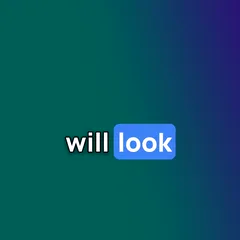


Punchy is the default. All five share the same rules: two to four words on screen, the spoken word highlighted as it's said, and each new line popping in. A line that's too wide shrinks to fit instead of wrapping onto two, and subtitles sit in the lower part of the frame, clear of the speaker's face and the platform's buttons.
Change the style after the fact
Open a project and pick a style under Subtitles. Every clip is re-rendered in the new style, usually in under a minute, and the old versions keep playing until the new ones are ready.
Rendering a new style costs a credit or two for a typical project. The picker shows the price before you commit, and if a clip fails to render, you get its share back. Styles you've already rendered stay yours: switching back to one is free and instant, so trying a style costs you nothing more than the first render.
Download without subtitles
Prefer to caption in CapCut or your own editor? Every clip now has a Download without subtitles button. You get the same reframed clip, with your watermark if you've set one, and no text on it. Choosing None as a project's style is free too.
Set your default
Found your style? Pick it under Profile → Branding → Subtitle style and every new project starts with it, alongside your watermark. Projects you've already made keep the style they have.
Clip a video with the new subtitles →
New here? Every account starts with 20 free credits. No card required.